In short: Point AIX Sendmail at a SMART_HOST relay so cron and scripts deliver through one authenticated path instead of direct Internet SMTP.
Prerequisites
This article assumes that you have completed the previous articles in this series and have successfully installed the latest Sendmail package from the AIX Toolbox. At this stage, Sendmail should already support modern features such as STARTTLS and SASLv2.
1. What Happens After Installing Sendmail?
Many administrators believe that installing Sendmail automatically enables email delivery. In reality, installation is only the first step.
After installation, Sendmail is capable of sending email, but it still doesn't know where messages should be delivered.
Several important questions remain unanswered:
- Which SMTP server should Sendmail connect to?
- Should mail be delivered directly to the Internet?
- Should all mail be forwarded to an enterprise SMTP relay?
- Will authentication be required?
- Should communication use TLS encryption?
Until these questions are answered through configuration, Sendmail cannot function as a modern SMTP client.
Install Sendmail
        v
Sendmail Binary
        v
No SMTP Configuration
        v
Cannot Relay Mail
        v
Configure SMTP Relay
        v
Ready for Enterprise Email
Installing Sendmail provides the software. Configuration tells Sendmail how, where, and when to deliver email.
2. Understanding sendmail.cf
The heart of every Sendmail installation is the sendmail.cf configuration file.
This file defines nearly every aspect of Sendmail's behaviour, including mail routing, SMTP relay settings, daemon options, trusted users, delivery modes, timeout values, and protocol behaviour.
Unlike modern configuration files, sendmail.cf is intentionally compact and highly optimized. Many administrators find it difficult to read because it was historically generated rather than written manually.
sendmail.mc
      v
     m4
      v
sendmail.cf
On many UNIX and Linux systems, administrators edit sendmail.mc and then regenerate sendmail.cf using the m4 macro processor.
However, many AIX environments—particularly those using the AIX Toolbox packages—work directly with the generated sendmail.cf file. Understanding its structure is therefore an important administrative skill.
Always create a backup of /etc/mail/sendmail.cf before making any configuration changes.
cp /etc/mail/sendmail.cf /etc/mail/sendmail.cf.bkp
3. Important Configuration Files
Although sendmail.cf is the primary configuration file, Sendmail relies on several additional files that work together to control mail processing.
| File | Purpose |
|---|---|
| /etc/mail/sendmail.cf | Main Sendmail configuration. |
| /etc/mail/submit.cf | Configuration used by local mail submission programs. |
| /etc/mail/aliases | Mail alias definitions. |
| /etc/mail/access | Access control rules. |
| /etc/mail/local-host-names | Local host identities accepted by Sendmail. |
| /etc/mail/authinfo | SMTP authentication information (introduced later in this series). |
At this stage, we will focus only on understanding these files. Detailed modifications—particularly those related to SMTP authentication—will be covered in the next articles.
A typical enterprise Sendmail deployment uses only a small subset of these files for SMTP relay configuration. Understanding their purpose now makes the later configuration process much easier.
4. Understanding SMART_HOST
Earlier articles covered how the MUA submits mail, how Sendmail acts as the MTA, and why enterprises prefer an SMTP relay over direct Internet delivery. In Sendmail, that relay is the SMART_HOST: every outgoing message is forwarded to a trusted SMTP server that handles authentication, encryption, and final delivery on behalf of the AIX host.
By default, Sendmail looks up the recipient's MX record and tries direct delivery. With a SMART_HOST configured, that path becomes: application → Sendmail → enterprise relay → recipient mail server.
A SMART_HOST is a trusted SMTP server that accepts all outgoing email from Sendmail and delivers it on behalf of your AIX server. See Email Architecture and Understanding Sendmail for the full background.
5. Configuring the SMTP Relay
In Sendmail, the SMART_HOST is defined using the DS directive within the sendmail.cf configuration file.
The directive specifies the hostname of the SMTP server that will receive all outgoing email.
DSsmtp.example.com

In this example:
- DS indicates the Default Smart Host.
- smtp.example.com is the SMTP relay server.
Once this value is configured, Sendmail no longer performs DNS MX lookups for each outgoing message. Instead, every email is forwarded directly to the configured relay server.
=> Without SMART_HOST

Sendmail
      v
DNS MX Lookup
      v
Recipient Mail Server

=> With SMART_HOST

Sendmail
      v
SMTP Relay
      v
Recipient Mail Server
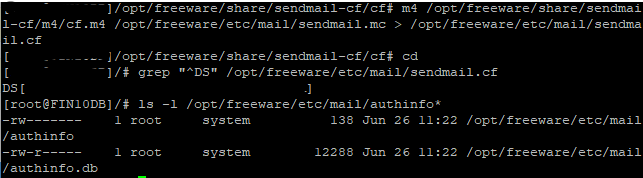
At this stage, the relay server is identified only by its hostname. Authentication credentials, TLS configuration, and SMTP authentication will be introduced in the next article when integrating Sendmail with AWS Simple Email Service (SES).
6. Applying Configuration Changes
After modifying the Sendmail configuration, the daemon must reload the updated settings before the changes become active.
On IBM AIX, Sendmail is managed through the System Resource Controller (SRC).
To reload the configuration without completely stopping the service, use:
refresh -s sendmail
If a full restart is required, stop and start the service using the following commands.
stopsrc -s sendmail

startsrc -s sendmail
Finally, verify that the daemon is running correctly.
lssrc -s sendmail
A successful response confirms that Sendmail is active and ready to process outgoing mail.
After every configuration change, verify that the Sendmail daemon has restarted successfully before testing email delivery. Configuration errors are much easier to identify immediately after a restart than during production mail processing.
7. Verifying the Configuration
Before configuring SMTP authentication, perform a few basic validation checks.
- Verify that the Sendmail daemon is running.
- Confirm that the SMART_HOST hostname resolves correctly.
- Ensure that the configured SMTP port is reachable.
- Review the mail queue for unexpected pending messages.
- Check the system logs for configuration-related errors.
These simple checks help identify networking or configuration issues before authentication and encryption are introduced.
At this point, Sendmail understands where to send email, but it still doesn't know how to authenticate with the SMTP server. In the next article, we'll configure SMTP authentication using Amazon Simple Email Service (AWS SES), create the required authentication database, enable SASL, configure TLS encryption, and send the first authenticated email from an AIX server.
8. Testing the SMTP Client Configuration
After configuring Sendmail as an SMTP client, the next step is to verify that the configuration behaves as expected. At this stage, the goal is not to authenticate with an SMTP relay but to ensure that Sendmail is processing messages correctly and attempting delivery to the configured SMART_HOST.
A simple test email can be generated using the mail utility.
echo "This is a test mail." | mail -s "SMTP Client Test" admin@example.com
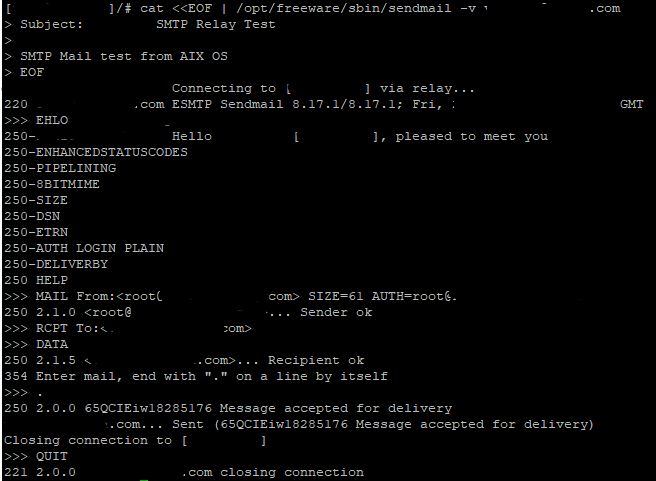
After sending the message, verify that no immediate errors are reported. If the SMTP relay is not yet configured for authentication, the message may remain in the queue, which is expected at this stage.
Do not expect successful email delivery yet if your SMTP relay requires authentication. The purpose of this test is simply to confirm that Sendmail accepts the message and begins processing it correctly.
9. Understanding Mail Queue Behaviour
One of Sendmail's strengths is its ability to queue messages whenever immediate delivery is not possible. Rather than discarding email because of a temporary network or configuration problem, Sendmail safely stores the message and retries delivery later.
Display the current mail queue using either of the following commands.
mailq
or
sendmail -bp
Typical queue states include:
| Status | Meaning |
|---|---|
| Queue Empty | No pending email messages. |
| Queued | Waiting for the next delivery attempt. |
| Deferred | Temporary delivery problem detected. |
| Delivered | Message successfully transferred to the SMTP server. |
A growing mail queue is often an indication of connectivity, DNS, relay configuration, or authentication problems. Monitoring the queue regularly provides valuable insight into the health of your email infrastructure.
Application
      v
Sendmail
      v
Mail Queue
      |
      +-------> SMTP Available --------> Delivered
      |
      +-------> Temporary Failure -----> Retry
Checking the mail queue should be one of the first troubleshooting steps whenever users report that email notifications are not being delivered.
10. Verifying SMTP Connectivity
Before enabling SMTP authentication, confirm that the AIX server can establish a network connection to the configured SMTP relay.
Depending on the tools available on your server, connectivity can be verified using one of the following commands.
telnet smtp.example.com 25
or
nc -vz smtp.example.com 25
For encrypted SMTP services, OpenSSL can be used to verify the TLS handshake.
openssl s_client -connect smtp.example.com:587 -starttls smtp
A successful connection confirms that the server can reach the SMTP relay and that firewalls or routing issues are unlikely to prevent email delivery.
Successful network connectivity does not guarantee successful email delivery. Authentication, TLS configuration, and SMTP permissions are validated only after the connection has been established.
11. Common Configuration Mistakes
Many Sendmail configuration issues are caused by small mistakes rather than software defects. Reviewing the following checklist can often resolve problems quickly.
| Issue | Possible Cause |
|---|---|
| Mail remains in queue | SMTP relay unavailable or authentication not yet configured. |
| Unable to resolve relay hostname | DNS configuration problem. |
| Connection refused | Firewall blocking the SMTP port or incorrect relay address. |
| Configuration changes ignored | Sendmail service not refreshed or restarted. |
| Unexpected local delivery | SMART_HOST not configured correctly. |
Always verify basic connectivity and configuration before assuming there is a problem with Sendmail itself.
12. Best Practices
- Always create a backup of sendmail.cf before making changes.
- Use a SMART_HOST instead of direct Internet mail delivery.
- Verify DNS resolution before troubleshooting Sendmail.
- Monitor the mail queue regularly.
- Document every configuration change.
- Restart or refresh Sendmail after modifying configuration files.
- Validate configuration changes on a test LPAR whenever possible.
Most enterprise environments configure Sendmail only as an SMTP client. Services such as AWS SES, Microsoft Exchange Online, or dedicated SMTP gateways handle authentication, encryption, spam filtering, and final message delivery.
13. Summary
Sendmail is now an SMTP client that can forward mail to an enterprise relay: sendmail.cf, SMART_HOST, daemon management, connectivity checks, and common pitfalls are covered above.
- Understood sendmail.cf
- Configured SMART_HOST
- Restarted Sendmail
- Verified SMTP connectivity
- Validated mail queue operation
Key Takeaways
- Sendmail needs configuration before it can relay email.
- SMART_HOST redirects all outgoing email to a trusted SMTP relay.
- The mail queue protects messages during temporary failures.
- Always verify connectivity before troubleshooting authentication.
- A correctly configured SMTP client forms the foundation for secure email delivery.
Sendmail is configured as an SMTP client that forwards mail to an enterprise relay. Next: authenticate with Amazon SES—SMTP credentials, authinfo, hash maps, SASL, TLS, and a first authenticated test.